HappyDays

HappyDays

An interactive countdown for your event

Build a countdown journey with riddles, greetings, photos and videos that unlock day by day until the big moment.

How it works

Three simple steps to an unforgettable journey

Build a personal countdown in minutes. Your recipient opens a new treasure chest every day until the big moment.

  1. ๐Ÿ“

    Step 1

    Create an event

    Enter the recipient's name, the event type and date, then pick a countdown package.

  2. ๐Ÿ”

    Step 2

    Fill the locks

    Give each lock a riddle or challenge, with a greeting, photo, video or recording waiting behind it.

  3. ๐ŸŽ

    Step 3

    Share and enjoy

    Send the recipient a personal link on WhatsApp or any other way. A new treasure chest opens every day.

Guide

The full guide โ€” step by step

Everything you need to create your event, from signing up until the link is in the celebrant's hands. Tap a step to open it.
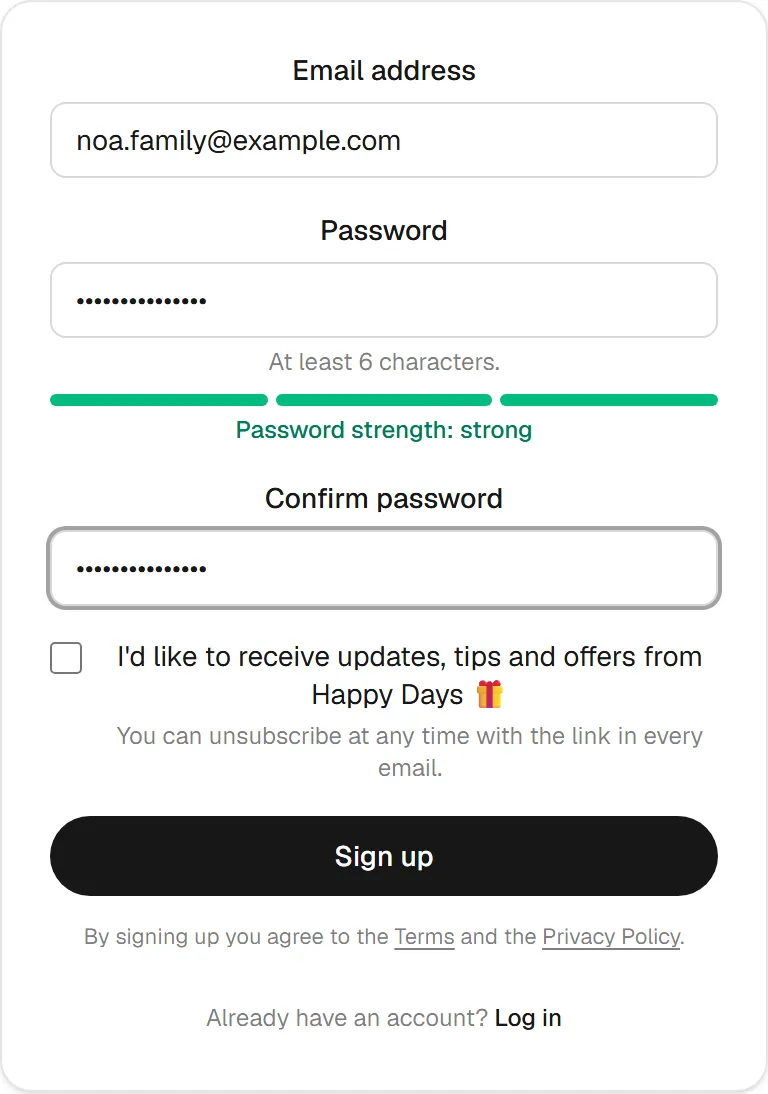
  1. 1Step 1: Sign up and log in
    • Click "Start creating an event" and sign up with an email and password (or log in if you already have an account).
    • We'll send you a verification email โ€” click the link in it to activate your account.
    • You'll always find every event you've created under "My events".
    Screenshot: Sign up and log in
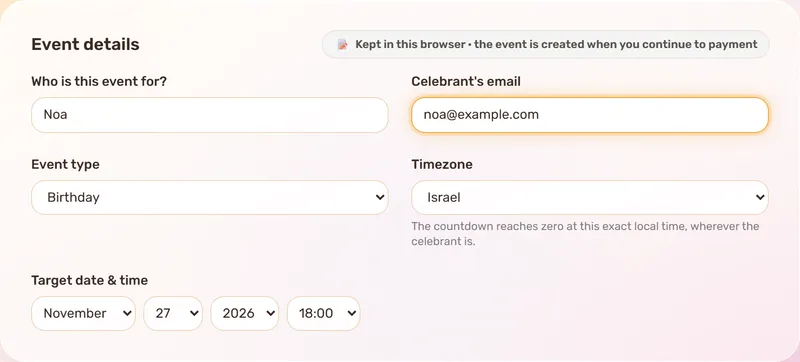
  2. 2Step 2: Event details and choosing a package
    • Fill in the celebrant's name, their email (that's where the updates go when the journey starts), the event type, and the event's date and time. With "Other" you can type your own name for it โ€” e.g. "First day of school".
    • Pick a package: how many locks and how often they open. Opening times are counted back from the event date โ€” the last lock opens the day before. With "Personal pick" you choose any number from 1 to 50.
    • Your details are kept in your browser until you continue to payment, so you can refresh the page or come back later without losing anything.
    Screenshot: Event details and choosing a package
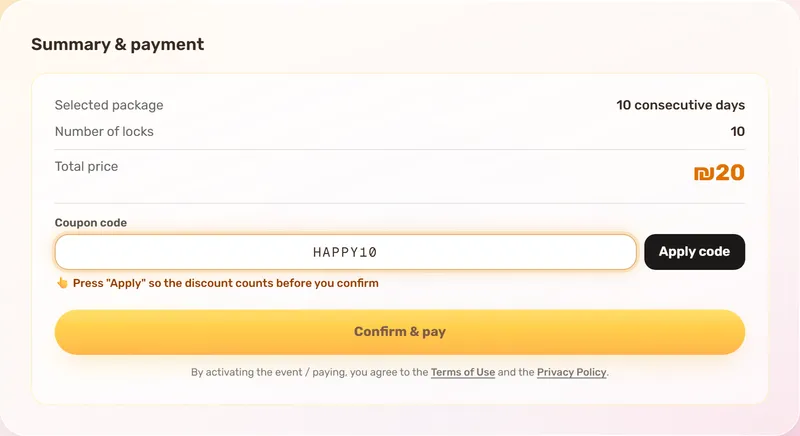
  3. 3Step 3: Payment or coupon
    • Click "Confirm & pay" and pay with Bit or a bank transfer. Once the payment is approved, the event is activated and you get a confirmation email.
    • Have a coupon? Click "Have a coupon code?", type the code and click "Apply code". A 100% coupon activates the event right away, with no payment.
    Screenshot: Payment or coupon
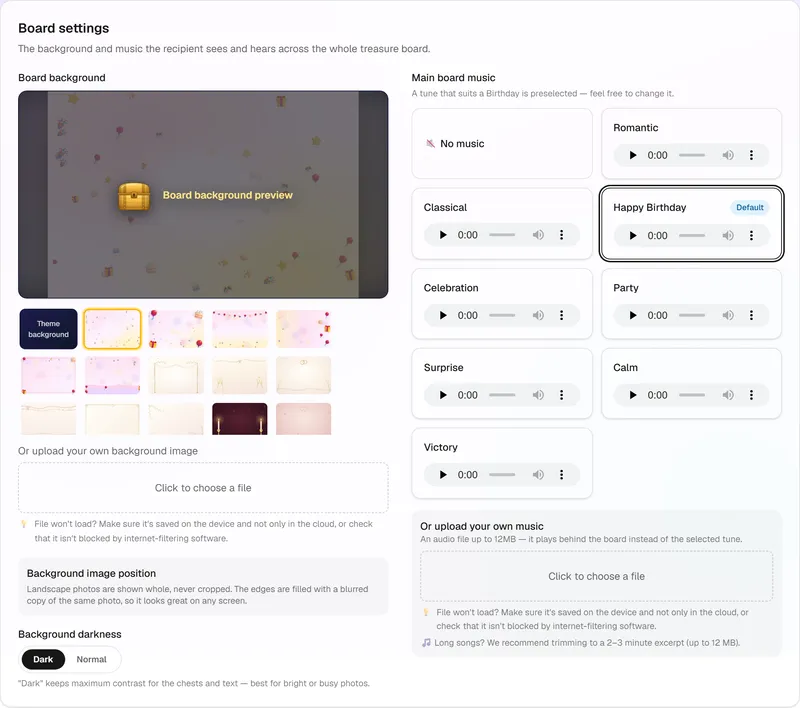
  4. 4Step 4: Board background and music
    • At the top of the lock board, under "Board settings", pick a background from the library or upload your own photo โ€” for example, of the celebrant.
    • Choose how much to darken the background so the chests and text stand out.
    • Pick background music from the list, upload your own song, or leave it without music.
    Screenshot: Board background and music
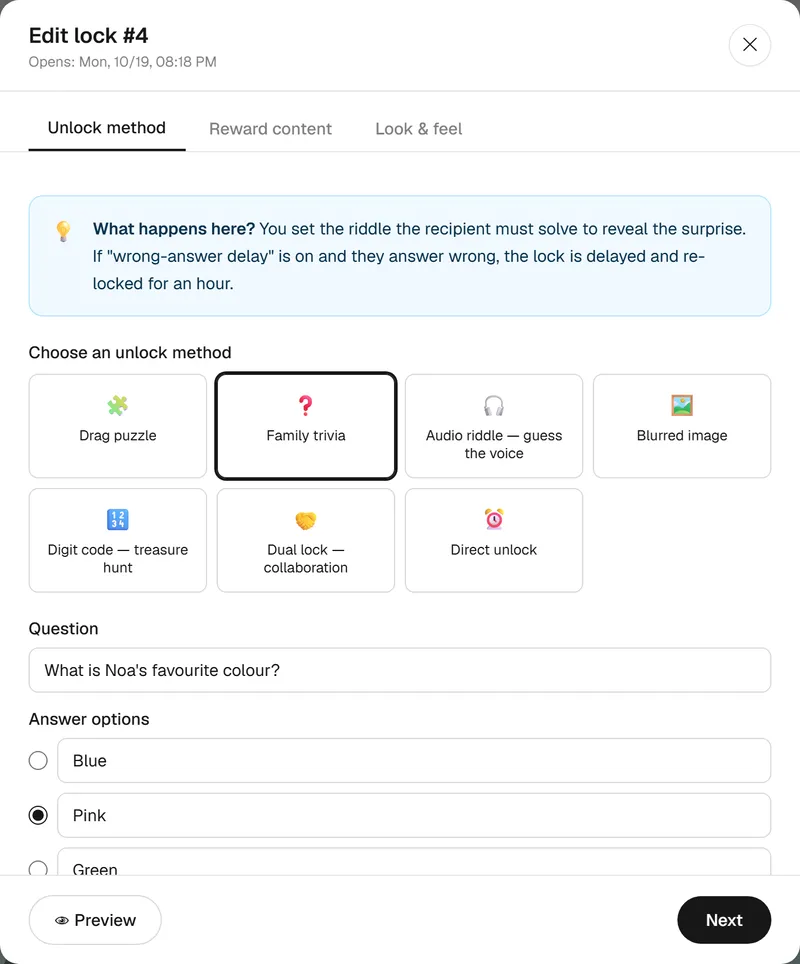
  5. 5Step 5: Filling in each lock
    • Click a lock on the board and go through three parts:
    • Unlock method โ€” how the lock is opened: trivia (a question with 4 answers), an audio riddle, a blurred image, a puzzle, a numeric treasure-hunt code, a dual lock solved together with a family member, or a direct opening with no riddle.
    • Reward content โ€” the surprise waiting inside: a personal letter (or a PDF / Word document), a photo, a recording or a video (a file up to 50MB, or a YouTube link).
    • Look & feel โ€” a frame, background and music for this lock's card.
    • You can change each lock's opening time separately and use "Preview" to see exactly what the celebrant will see. When you're done, click "Save changes".
    • Tip: with "Wrong-attempt lockout" turned on, a wrong answer locks the lock for an hour.
    Screenshot: Filling in each lock
  6. 6Step 6: Sending the link โ€” and what happens next
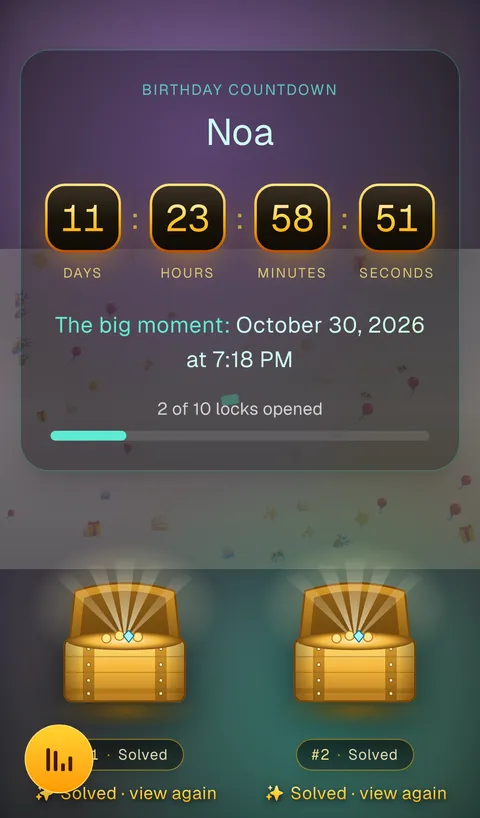
    • After saving, use "Share via WhatsApp" or "Copy link" and send the link to the celebrant.
    • When the first lock's opening time arrives, the celebrant and you get an email โ€” and from then on, a new chest opens on the board at each set time.
    • You can come back and edit content even after sending, from "My events" โ€” changes show up immediately.
    • Once every lock is open, a souvenir album (PDF) with all the greetings and photos can be downloaded. Files are kept in the cloud for two weeks after the event and then deleted โ€” download the album and the videos before then.
    Screenshot: Sending the link โ€” and what happens next

Packages

Choose the journey that fits

One price per event. Every package includes every riddle and content type.

Last 3 days

3 locks

Free for our launch ๐ŸŽ‰

One lock a day for the last 3 days before the event, at the event's time.

  • Riddles, greetings, photos and videos
  • A personal link, no app download needed
  • Background music and ready-made designs
Most recommended

10 consecutive days

10 locks

Free for our launch ๐ŸŽ‰

One lock per day, from 10 days before the event through the day before it, at the event's time.

  • Riddles, greetings, photos and videos
  • A personal link, no app download needed
  • Background music and ready-made designs

A month of anticipation

4 locks

Free for our launch ๐ŸŽ‰

4 locks, one a week (22, 15, 8 and 1 days before the event) โ€” a whole month of excitement.

  • Riddles, greetings, photos and videos
  • A personal link, no app download needed
  • Background music and ready-made designs

30 consecutive days

30 locks

โ‚ช30

One lock per day, from a full month before the event through the day before it, at the event's time.

  • Riddles, greetings, photos and videos
  • A personal link, no app download needed
  • Background music and ready-made designs

10 locks โ€” fully customizable

10 locks

Free for our launch ๐ŸŽ‰

10 locks with starting default dates, which you can fully rearrange on the lock board in the next step.

  • Riddles, greetings, photos and videos
  • A personal link, no app download needed
  • Background music and ready-made designs

Need a different number? In the wizard you can pick a personal package โ€” any number from 1 to 50 locks, from โ‚ช0 (priced by the number of locks).